


Troubleshooting Your Wi-Fi Connection
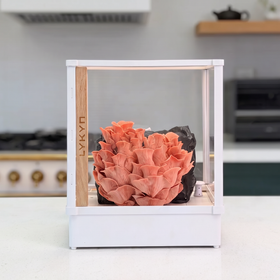
Follow these steps to connect your Lykyn Grow Chamber to Wi-Fi and the Lykyn app.
1Reset Your Device
Unplug your Lykyn chamber and plug it back in five times.
Allow it to fully power up. When it's ready to pair, you'll see the LED indicator begin blinking.
2Start Device Setup in the App
Open the Lykyn app and tap "Add New Device" → "Scan Devices."
3Scan or Switch to Manual Setup
- If your device appears, tap Connect and select the same Wi-Fi network your phone is currently on.
- If you don't see your device (or the automatic scan fails), tap "Manual Connect."
4Select Your Device Type
On the "Add a device manually" page, choose "Smart Mushroom."
5Join the Lykyn Device Network
On the "Manual Connection" page:
- Open your phone's Settings → Wi-Fi.
- Look for a network beginning with "Lykyn - ".
- Connect to that network.
- Return to the Lykyn app and tap "Connect."
6Check the Connection Result
You will see either "Connection Successful" or "Connection Unsuccessful."
Firmware Update After Connecting
If your connection is successful, please wait 1–3 minutes while your Lykyn chamber connects to the internet, downloads the latest firmware, and automatically restarts.
During this process:
- The LED indicator near the power cable will turn orange while updating.
- When the update finishes and the chamber reconnects, the LED will turn solid green.
If the connection fails, these are the most common reasons:
- Your phone is connected to a different Wi-Fi network than the one you selected for your Lykyn chamber.
- You selected a 5 GHz network. Many smart home devices-including Lykyn-require 2.4 GHz Wi-Fi, so choose a 2.4 GHz network instead.